
Getting started
You need macOS 14 or later and Cubase. Studio Launcher has only been tested with Cubase 15; it uses MIDI Remote, which exists since Cubase 12, but earlier versions haven't been checked.
- Drag Studio Launcher from StudioLauncher.dmg to Applications and open it. It lives in the menu bar, with no Dock icon.
- Open Cubase. The guided setup detects it and checks off each step as it's done.
- Click Install Script. If macOS asks about the Documents folder, allow it: the script goes in Documents › Steinberg.
- In Cubase, choose Studio › MIDI Remote Manager and reload the scripts. The step is checked when the script answers.
- Allow Accessibility (optional, but recommended). Without it every command still runs, but the palette doesn't know what's selected or which window is in front.
- Choose the palette shortcut. The default is
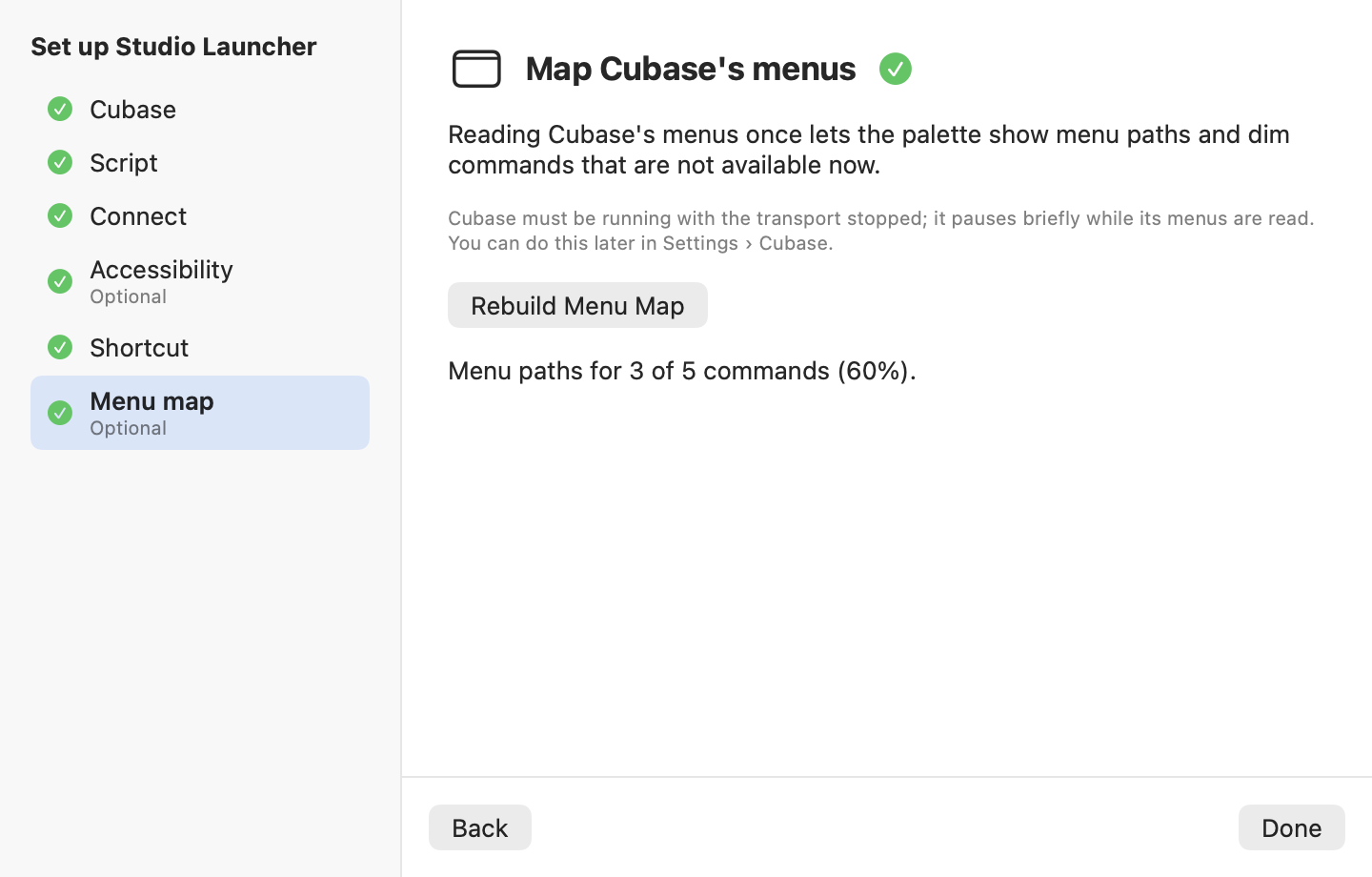
⌘⇧P. - Build the menu map (optional), with Cubase open and the transport stopped. It shows menu paths and dims commands that aren't available now. Cubase pauses briefly while its menus are read.
Then, with Cubase in front, press the shortcut, type and press ↩. You can come back to this guide with /help.
The selection, the active window and command availability are only read from Cubase in English. In any other language every command still runs, but suggestions are less precise.
The palette
The palette opens over Cubase without taking its focus, so each command acts where it should. By default the shortcut only exists with Cubase in front, so it doesn't clash with other apps. You can also open it from the menu bar icon.
Before you type
When you open the palette, with the search empty, you already see these lists:
- Run Again: the last thing you ran, if it was less than 10 minutes ago.
- Favorites: up to four, in your order.
- For this: suggestions for the current selection and window. They change with audio or MIDI selected.
- Recent: what you used lately.
As you type
The lists give way to the results.
- Context bar: the selected track, which is where plug-ins go; what's selected; the active window if it's an editor or the MixConsole; and REC if Cubase is recording or you're recording a macro.
- Search: type here. Start with
/for a slash command. - Selected row: the one
↩and the other keys act on. Matching letters are highlighted. - Row details: vendor, type and format for plug-ins; category, menu path and Cubase shortcut for commands. A star marks favorites.
- Footer: what
↩will do with the selected row and the variants with modifiers. For plug-ins, it always names the target track and slot.
A dimmed row says why it can't be used now.
What it finds and how it ranks results is covered in the next section.
How it closes
It closes with esc, ↩, a click outside, the shortcut, or when another app comes to the front. ⌘↩ runs and pins it: clicks in Cubase don't close it, so you can chain commands. It hides by itself if Cubase opens a new window or dialog.
Searching commands and plug-ins
The palette searches Cubase's key commands, its macros, Project Logical Editor presets, plug-ins, chains and your own macros. It finds them even if you don't type them exactly:
- Word beginnings:
pro qfinds Pro-Q 4. - Initials:
ttffinds Tracks To Folder. - Small typos.
- Vendor, plug-in type and Plugin Manager collections:
fxoreqfilter too. - Any aliases you've added.
↩ inserts Pro-Q 4 in the next free slot.Every word has to match some field. Numbered families, like To Marker 1…9, show as one row until you type a number; ⇥ expands them too.
What you use rises in the results according to the context, and what you pick for a search is remembered for the next one. It's all calculated and stored on your Mac. You can see it, clear it or turn it off in Settings › Advanced › Learning.
Keyboard
| Key | What it does |
|---|---|
↑ ↓, ⌃P ⌃N | Move the selection |
⇞ ⇟ | Page up and down |
↩ | Main action and close |
⌘↩ | Main action without closing |
⌥↩ | Plug-ins and chains: choose the slot |
⇧↩ | Replace, where it applies |
⌥⇧↩ | Plug-in with an audio event selected: process it |
⌘K | Actions of the row |
⌘1 … ⌘9 | Main action of row N |
⇥ | Complete a category or a slash command, or expand a family |
⌘D | Add to or remove from favorites |
⌘C | Copy the field's selection or, with none, the row |
⌘⌫ | Clear the search |
⌘, | Settings |
esc | Leave the current mode or, if there's none, close |
⌘. | Stop the running sequence |
⌘K offers, depending on the row: run N times, add an alias, copy, hide, favorite, insert into a slot, process the selected audio or edit.
Slash commands
They start with / and end with a space or ↩. On keyboards where / needs ⇧, you can also turn on . in Settings › Palette › Keyboard. Type just / to see the list.
| Type | What it does |
|---|---|
/c category text | Commands of a category; ⇥ completes it |
/p text | Effect plug-ins only |
/p3 text | Insert into slot 3 |
/p3 clear | Empty slot 3 |
/b3, /o3, /x3 | Bypass, open the editor of or remove the plug-in in slot 3 |
/i text | Instruments only |
/s | Slot manager of the selected track |
/ch text | Chains only |
/m text, /macro | Macros only |
/col text | Color the selected tracks or events |
/fav | Favorites |
/h | History |
/top | Most used |
/r8 text | Run 8 times (1 to 99) |
/kb cmd+shift+z | Commands with that shortcut |
/kf cmd+shift | Combinations free in Cubase with those modifiers |
/rec, /stop | Record a macro |
/regenerate | Regenerate the catalog and the script |
/settings, /help | Settings and guided setup |
/data, /log | Data folder and diagnostics |
/quit | Quit the app |
Inserting plug-ins and instruments
Plug-ins go to the selected track, the one the context bar names. If you change track between opening the palette and running, the action is refused instead of going to another track.
Step by step, next to what Cubase offers on its own: How to insert a plug-in in Cubase from the keyboard.
| Key | What it does |
|---|---|
↩ | Insert after the last used slot. You can switch to the first empty slot in Settings › Plug-ins › ↩ inserts |
⌥↩ | Choose the slot. Typing a number selects it; ↩ inserts into an empty one |
⇧↩ | Replace the plug-in in a used slot |
⌥⇧↩ | Process the selected audio event with that plug-in |
- Slot number: typing one selects it.
- Used slot: shows its plug-in.
↩does nothing and⇧↩replaces it. - Empty slot:
↩inserts the plug-in here. - Footer: in red, the plug-in that would be replaced, so there are no surprises.
escgoes back.
Undo
⌘Z doesn't undo inserting or replacing a plug-in, not even when done by hand in Cubase: it goes to the MixConsole history. Undo MixConsole Step undoes it and, for a replacement, brings back the previous plug-in with its settings. The replacement notice reminds you. Each command, on the other hand, is a normal undo step.
Instruments
With an instrument track selected, /i text and ⇧↩ replace its instrument. On other tracks the row is disabled.
Preview
With a plug-in selected, the palette shows a picture of its interface beside it, when the plug-in installed one: a VST 3 snapshot or an NKS thumbnail. Nothing is downloaded or captured. Turn it off in Settings › Plug-ins › Preview.
⌥↩ opens the track's slots, and only ⇧↩ replaces a used one.Slot manager
/s lists the slots of the selected track; typing filters by number or name. ↩ opens or closes the editor, as does ⌘E; ⌘B bypasses, ⇧↩ replaces and ⌘⌫ removes the plug-in.
Bypassing, turning on and opening the editor of a slot need slot viewers: turn on Include slot viewers in Settings › Advanced and reload the scripts in Cubase. They're off because they add bindings that Cubase updates on every track change, which can make selecting tracks slower.
Chains
A chain inserts several plug-ins in order, after the last used slot or, with ⌥↩, from the slot you choose. Create them in Settings › Plug-ins › Chains; Save Inserts as Chain… saves those of the selected track. If a step fails, the chain stops and what was already inserted stays.
Favorites and collections
⌘D adds the row to your favorites. Search for the name of a collection from Cubase's Plugin Manager to see its plug-ins.
Macros
A macro is a sequence of steps: commands, Cubase macros, presets, other macros of yours, plug-ins, slot actions and waits of up to 10 seconds. It runs from the palette like any other command.
Record one
- In the palette, type
/rec. REC shows in the context bar. - Run what you want, as usual. Each item is added to the macro.
- Type
/stopand name it.
Compose one
In Settings › Macros, New macro opens the editor: search for steps to add, insert waits or slot actions, reorder, duplicate and test. Record Here records steps after the selected one.
When it runs
- Steps go in order and a notice shows the progress.
⌘.stops it. - A wait starts when the previous step is done.
- A step pointing to something that no longer exists shows in red and the macro doesn't run.
- A command that opens a dialog can only be the last step.
- If Cubase quits midway, the macro stops and doesn't resume.
Track and event colors
The palette can color the selected tracks, or the selected parts and events, with your Cubase colors. The setting is off by default.
Turn it on
- In Settings › Cubase › Track colors, turn on Color tracks and events from the palette. The script has to be installed.
- Restart Cubase. Studio Launcher adds two Project Logical Editor presets for each color, in a Studio Launcher folder, and Cubase only reads them when it starts.
Use it
Type /col guitars and choose Color Selected Tracks or Color Selected Events. /col ev guitars leaves only the events one. They also show up in normal search, each with its color's swatch.
There are two commands because clicking an event usually selects its track too, so you say which one to color. Events covers MIDI and audio parts as well as audio events.
The colors come from the palette Cubase uses for new projects. In a project whose palette doesn't have that color, the command does nothing. Restart Cubase again when you change your colors.
Run Again and quick actions
Run Again repeats the last item as many times as before, without opening the palette. It has no default shortcut: assign one in Settings › General. It doesn't repeat replacing or emptying slots.
Quick actions are shortcuts of your own, as many as you like, in Settings › Quick Actions. Each does one of these:
- Open the palette with some text, such as
/pto go straight to plug-ins. - Run an item: a command, a macro, a plug-in or a chain, with the times or the slot you choose.
- Run a slot action on the selected track.
The shortcut recorder warns you if a combination is already a Cubase shortcut or another app uses it.
Settings
Open them with ⌘, from the palette, from the menu bar, or by opening the app again from Finder, which helps if you've hidden the icon.
| Tab | What's in it |
|---|---|
| General | Palette shortcut and when it's available, Run Again, open at login, menu bar icon, language, notices and updates |
| Palette | Visible rows, width, appearance, color themes, what esc does, command prefix, paths and shortcuts in rows, remembering the position |
| Commands | Command catalog with search: hide commands or categories, add aliases |
| Plug-ins | Where ↩ inserts, opening the editor after inserting, preview, favorites, hidden plug-ins and chains |
| Macros | List and editor |
| Quick Actions | Your shortcuts |
| Cubase | Detected version and folders, script state (install, reinstall, Optimize Hot Commands), catalog, menu map, track colors and Accessibility |
| Advanced | Learning, profile export and import, data folder, slot viewers and diagnostics |
| Support | Support the app and share it |
The profile holds the settings, favorites, hidden items, aliases, macros, chains and, if you want, what the palette learned. Use it to move to another Mac or keep a backup.
Command line
studio-launcher searches and runs from the Terminal, for your scripts. It's inside the app, at /Applications/Studio Launcher.app/Contents/MacOS/studio-launcher, and talks to the app, which must be open.
| Command | What it does |
|---|---|
find text | Search |
run name | Run. Without an exact match it lists candidates; --best picks the first and --times n repeats |
plugin insert name | Insert a plug-in; takes --slot n and --replace |
plugin clear slot | Empty a slot |
macro run name | Run a macro of yours |
status, ctx | Connection state and current context |
generate | Regenerate the catalog and the script |
settings, show, quit | Open Settings, open the palette or quit |
Each command has --help. What runs from here doesn't count for learning.
Troubleshooting
If something isn't connected, the palette tells you when it opens:
- State: what's wrong with the connection to Cubase.
- Warning: the problem and what to do.
- Fix: when there is one,
↩applies it. Here, it checks the connection again.
| What happens | What to do |
|---|---|
| Cubase hasn't loaded the script, or runs an older one | In Cubase, Studio › MIDI Remote Manager, reload the scripts. It's needed once after updates that change the script |
| The script isn't responding | Reload the scripts. If that's not enough, run /regenerate |
| The script can't be installed | Allow Studio Launcher to use Documents in System Settings › Privacy & Security › Files & Folders |
| The shortcut does nothing | Another app may be using it: choose another in Settings › General. By default it only works with Cubase in front |
| New commands or plug-ins are missing | Run /regenerate and reload the scripts |
| The selection doesn't show or suggestions are generic | Check Accessibility and that Cubase is in English. If the permission has no effect, remove Studio Launcher from the list in System Settings and add it again |
| A row says the track has no inserts | Select an audio track, an instrument track or similar |
| Bypass or opening the editor aren't available | Turn on Include slot viewers in Settings › Advanced and reload the scripts |
| A macro says a step no longer exists | Change that step in Settings › Macros |
Updating and uninstalling
The app checks for updates by itself if you allow it, and you can also check in Settings › General. To uninstall it, quit from the menu bar and drag it to the Trash. The script is in Documents › Steinberg › (your Cubase) › MIDI Remote › Driver Scripts › Local › DLT, and the data in ~/Library/Application Support/StudioLauncher.