macOS
Studio Launcher
All of Cubase, one shortcut away.
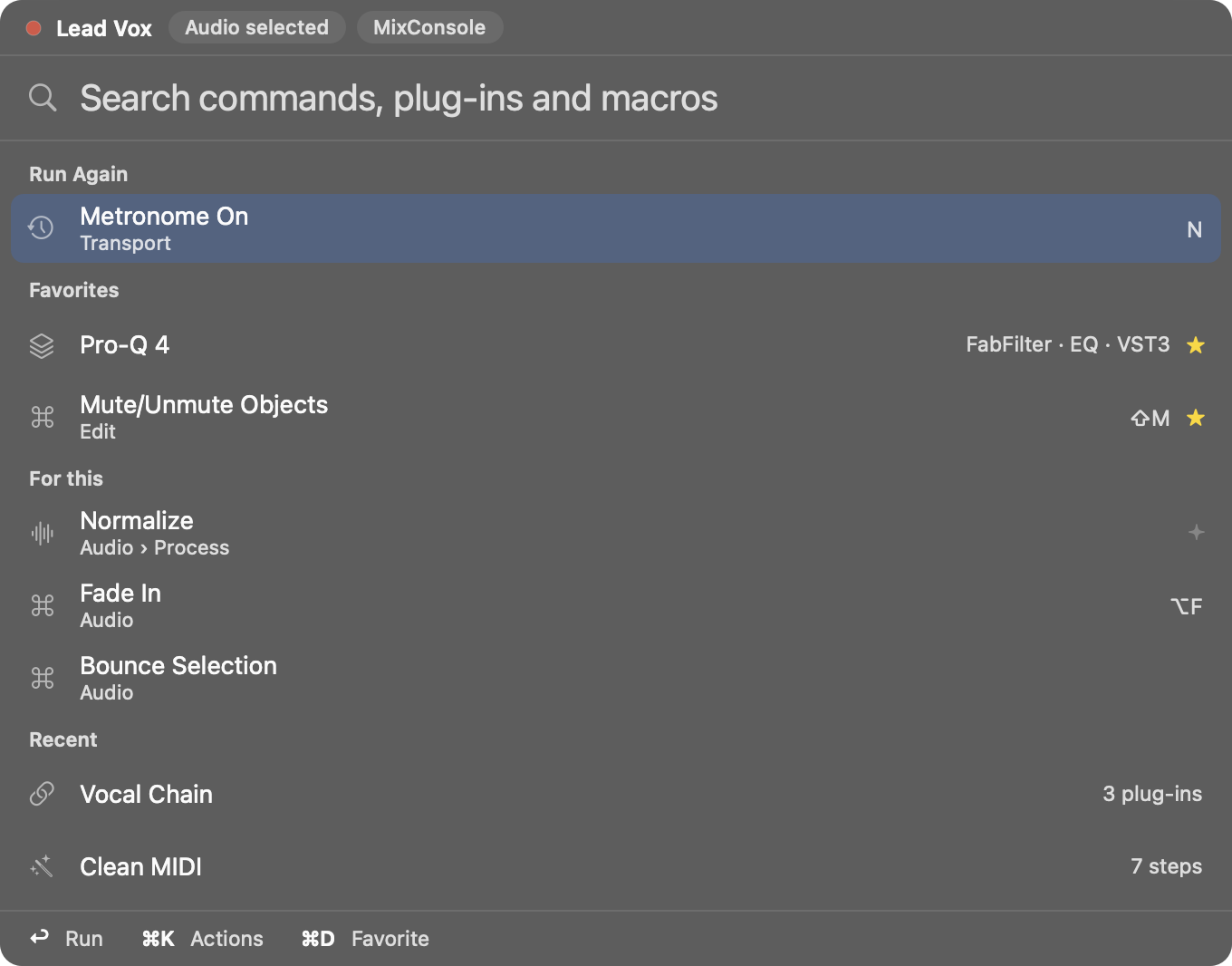
A command palette for Cubase in the Mac menu bar. With Cubase in front, press a shortcut, type, and run any command, macro, or plug-in without taking focus from it. It suggests what fits what you have selected and learns from how you work, on your Mac.
- macOS 14 or later
- Cubase 15
- Version 1.0 · Free
What it does
- One shortcut, all of Cubase.
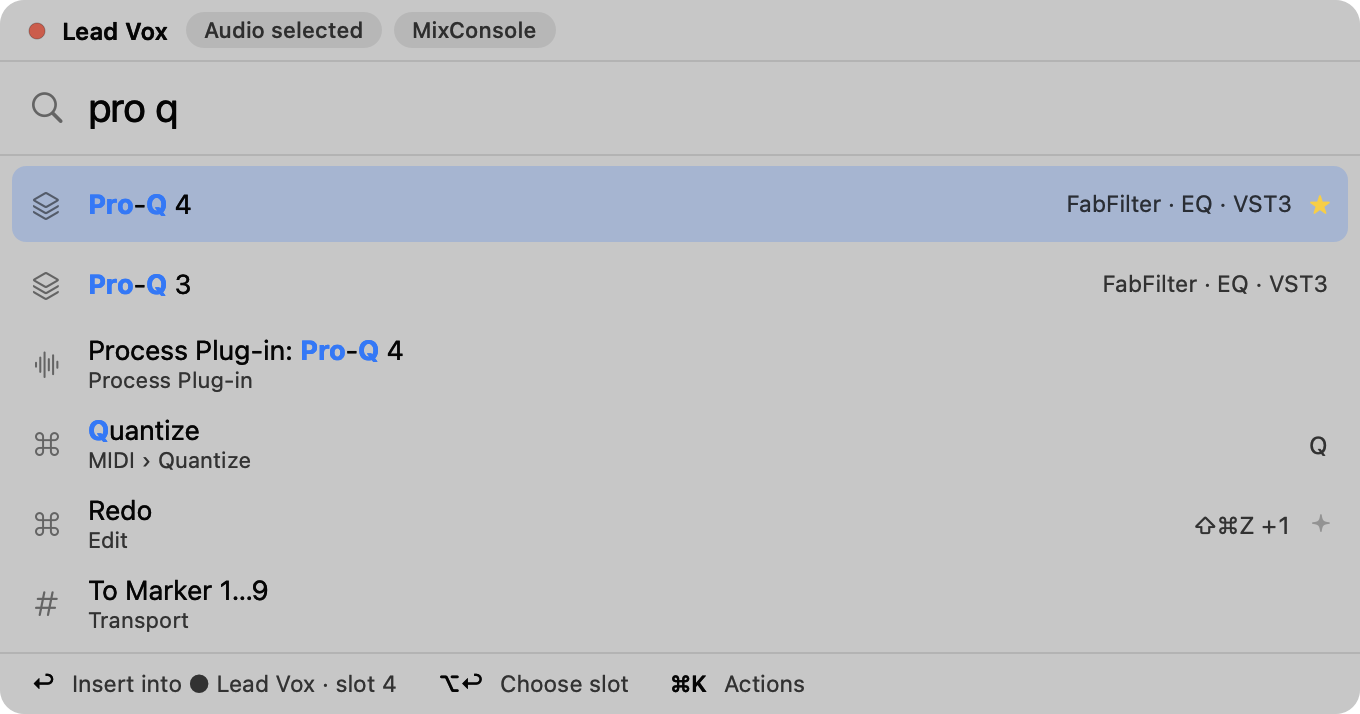
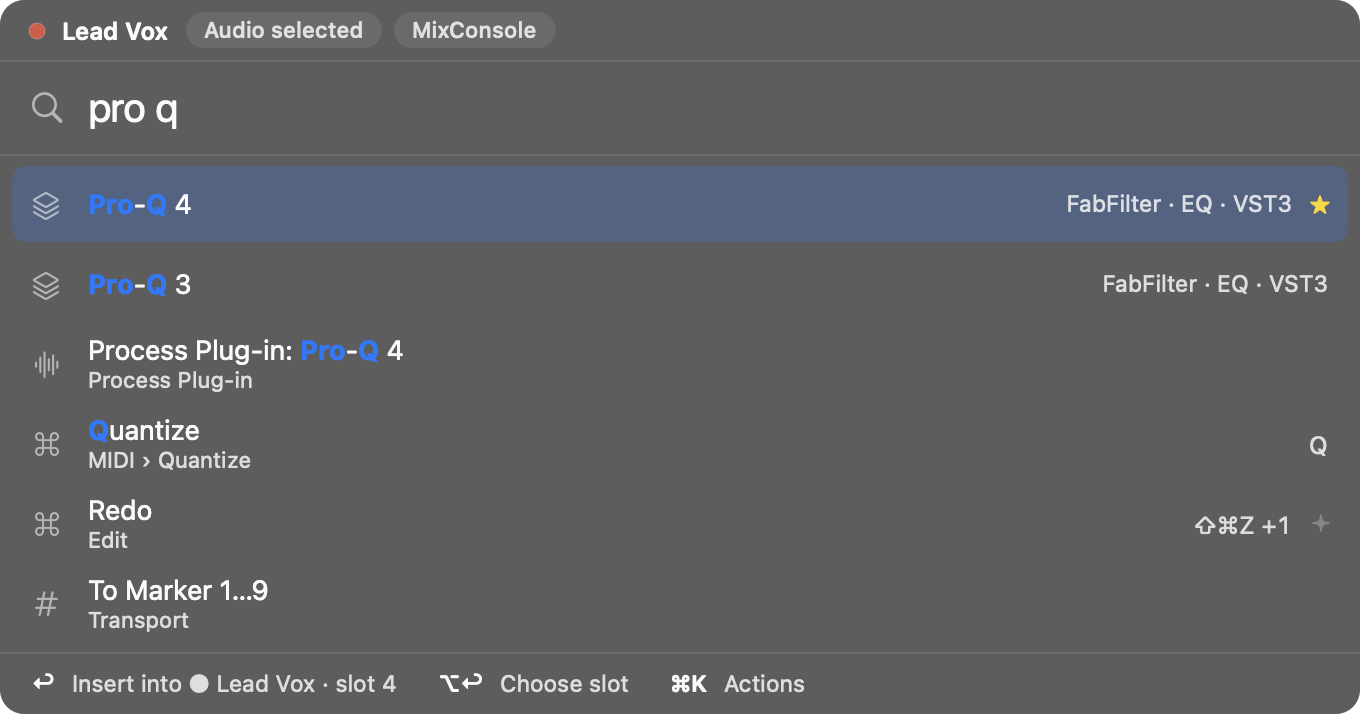
- Press ⌘⇧P, or the shortcut you choose, and search every key command, macro, and plug-in. The shortcut only exists while Cubase is in front.
- Suggests what fits.
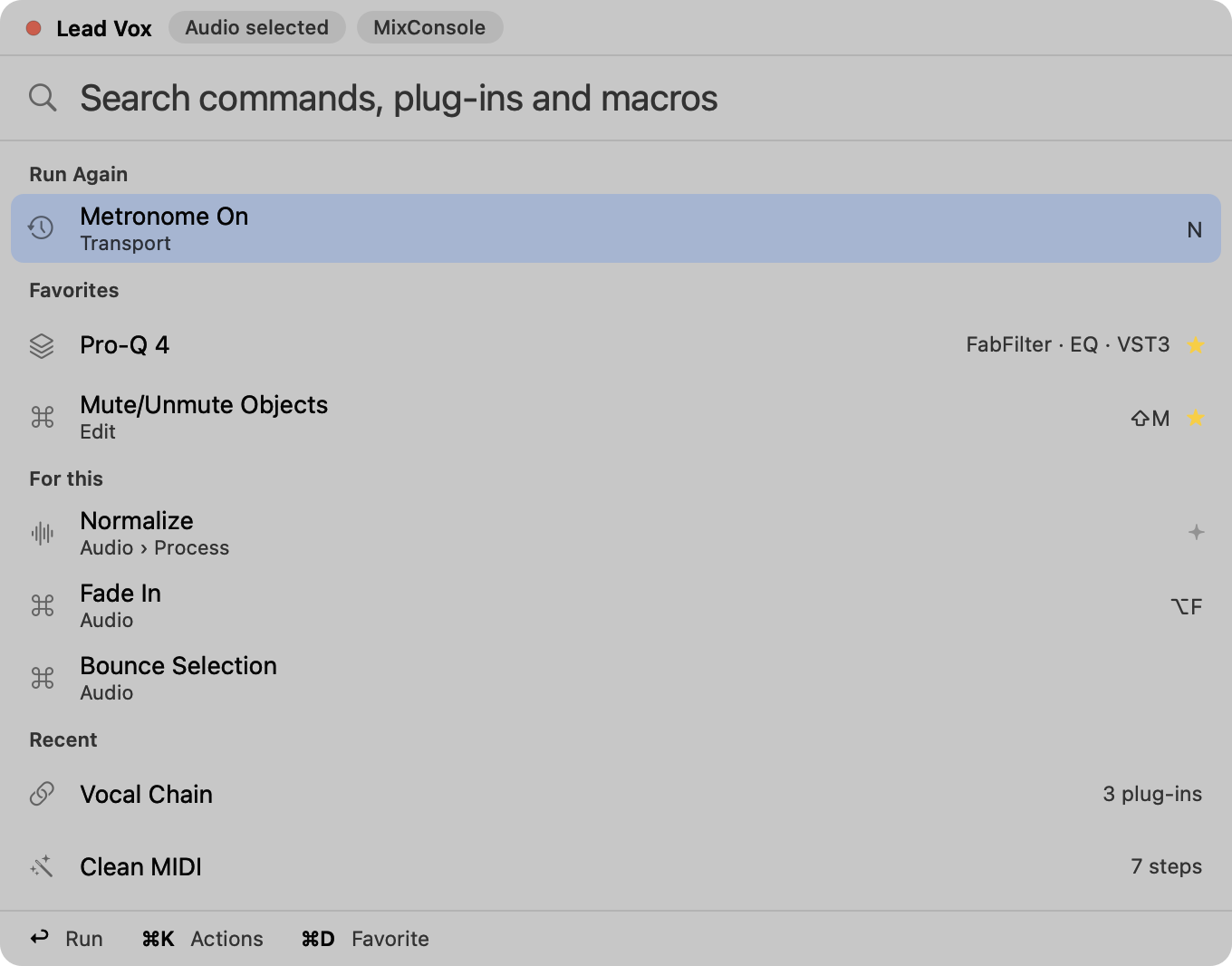
- It reads the selected track, the selection, the active window, and the transport, and ranks results by context. Opened without typing, it offers to run the last action again, your favorites, and what fits the selection.
- Keeps Cubase in focus.
- Cubase stays the active app while the palette is open, so every command acts where it should.
- Plug-ins where you want them.
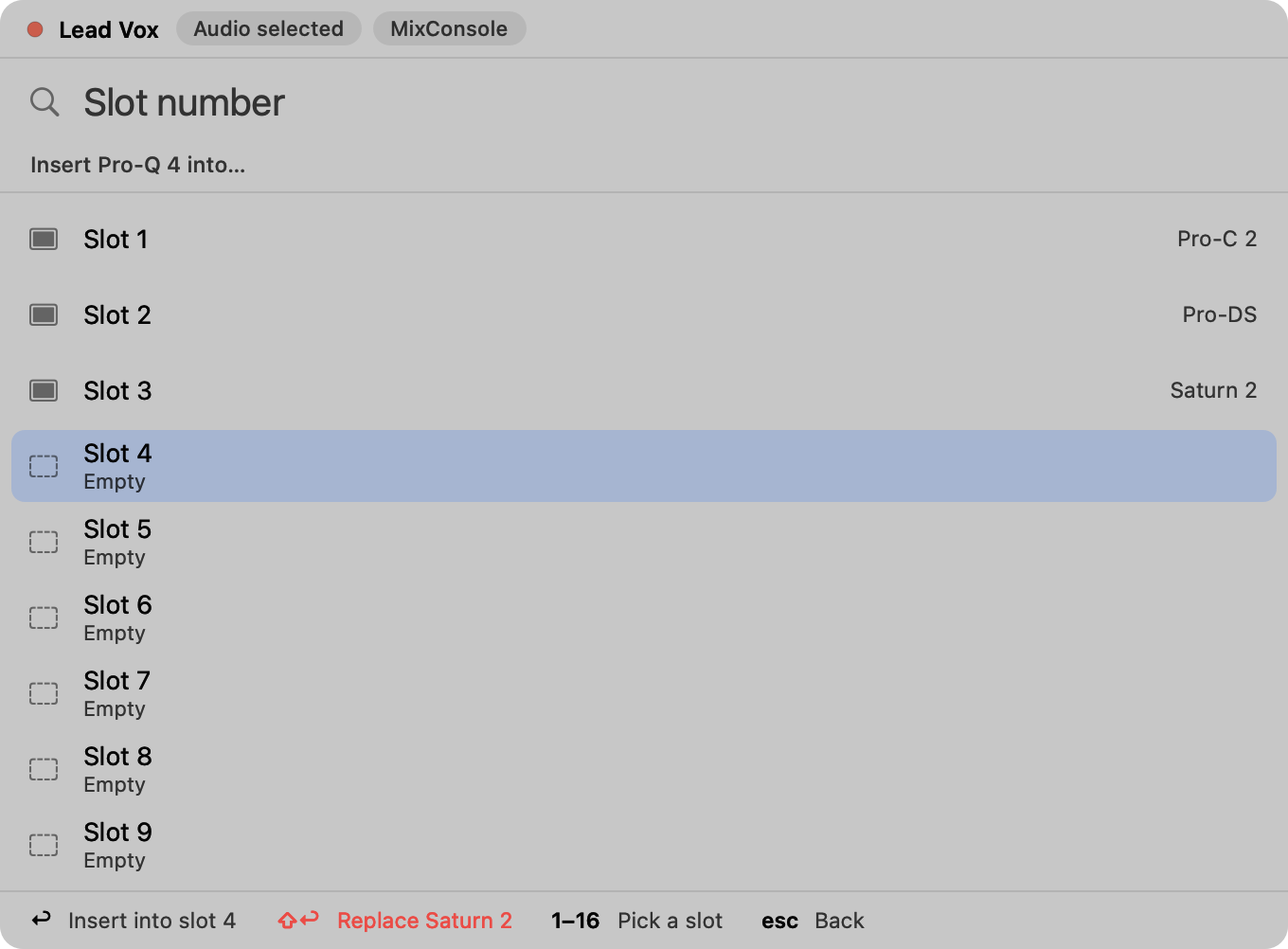
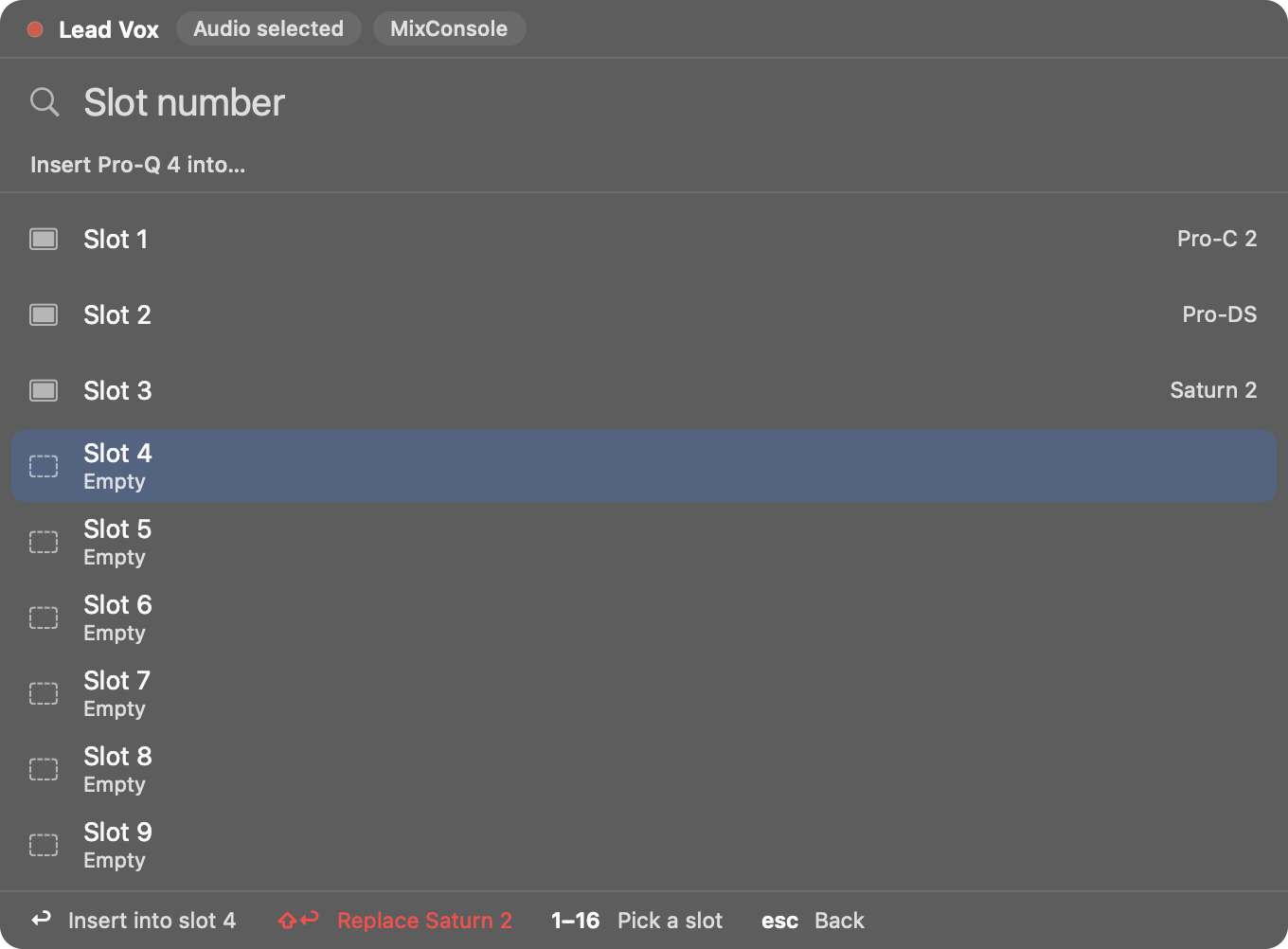
- Insert a plug-in on the selected track, in the next free slot or the one you pick. Replacing an occupied slot takes an explicit command.
- Your own macros.
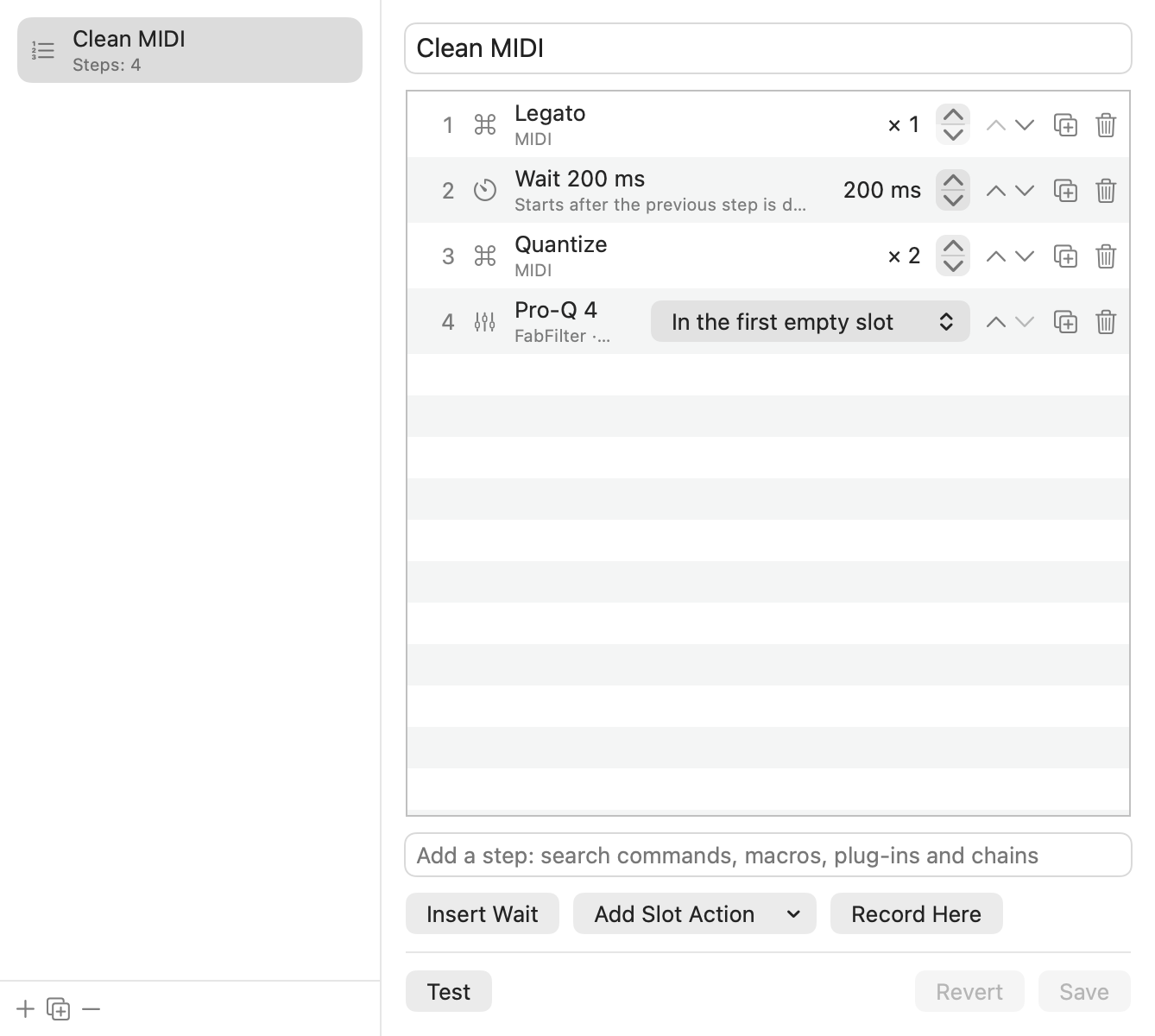
- Record or build sequences of commands, waits, and plug-ins, and run them like any other command.
- Learns locally.
- What you use rises in the results. Everything is computed and stored on your Mac.
- And a CLI.
- studio-launcher searches and runs from Terminal, for your scripts.
Screenshots
Install
Install the app. Open StudioLauncher.dmg and drag Studio Launcher to the Applications folder.
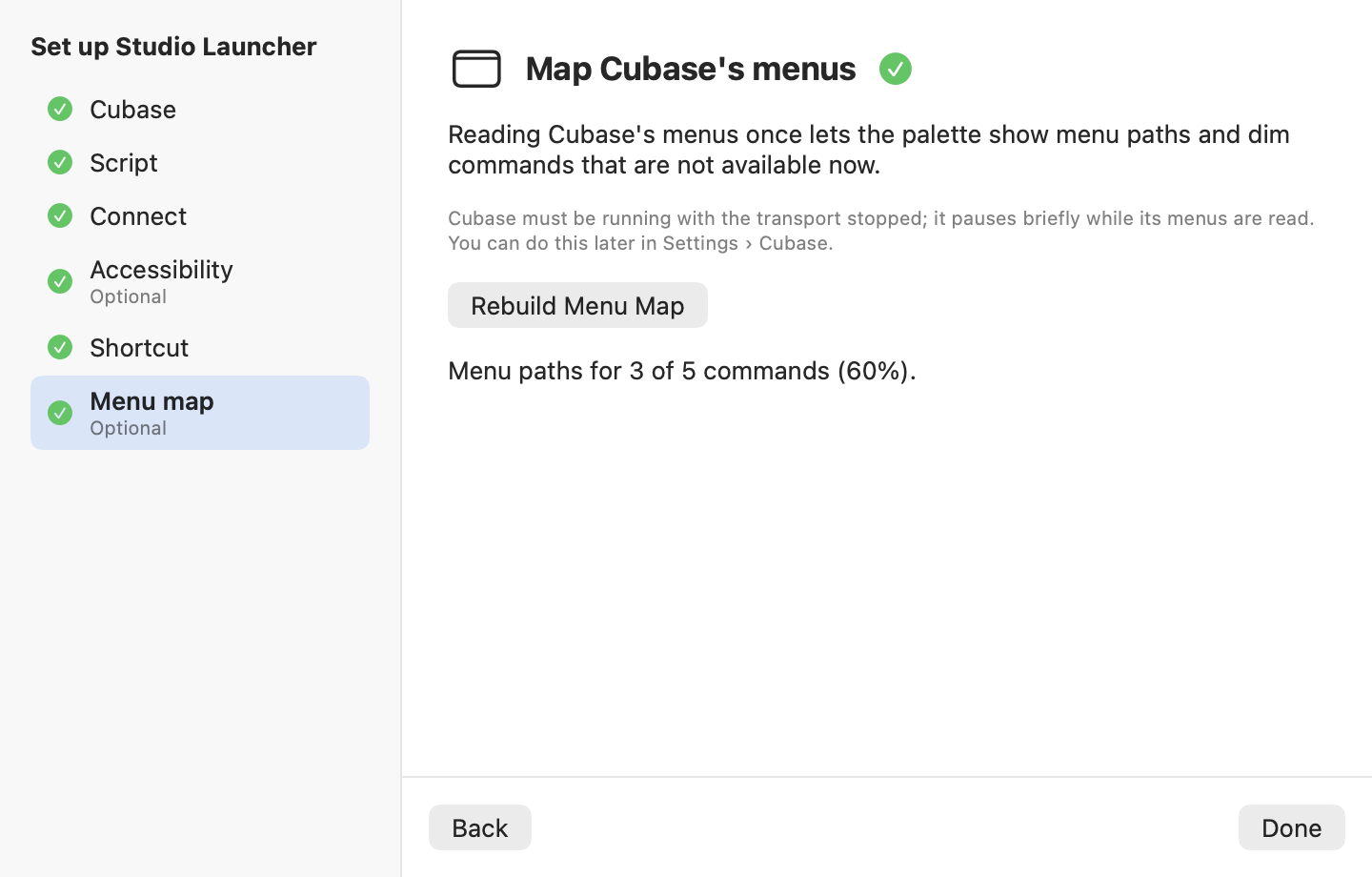
Open Cubase and Studio Launcher. The app lives in the menu bar. The first setup finds your Cubase and walks you through each step.
Install the MIDI Remote script. Click “Install Script”. If macOS asks whether Studio Launcher can use the Documents folder, allow it: the script goes in Documents › Steinberg.
Reload the scripts in Cubase. In Cubase, choose Studio › MIDI Remote Manager and reload the scripts. The app connects as soon as Cubase loads the script.
Allow Accessibility. It's optional but recommended: it lets the palette know what is selected and which window is in front. Then choose your shortcut (⌘⇧P by default).
Privacy
Everything stays on your Mac. Studio Launcher reads Cubase's preferences (key commands and plug-in caches) and stores what it learns, your macros, and your settings on your Mac. It has no accounts and no analytics, and sends nothing about how you use it. The MIDI Remote script only talks to the app through a virtual MIDI port on your Mac.
The only connection is the update check: the app downloads a file from downloads.dlt.ad to see whether there is a new version. That request carries no usage data or identifiers; like any download, the server sees your IP address and the app version. The app asks whether it should check automatically, and you can change that in Settings.
What's new
1.0
- First release.
- Search across key commands, Cubase macros, Project Logical Editor presets, plug-ins, FX chains, and your own macros.
- Suggestions based on the track, the selection, the active window, and the transport, with local learning.
- Plug-ins on the selected track: in the next free slot, in a given slot, or replacing one with ⇧↩.
- Your own macros with a recorder and an editor, and running the last action again.
- Guided first setup, full settings, a CLI, and automatic updates.
- In English and Spanish.
Questions
How much does it cost?
Nothing. Studio Launcher is free. If you find it useful, you can support it with a voluntary payment, which unlocks nothing.
Does it work with other versions of Cubase?
We have only tested it with Cubase 15. It uses Cubase's MIDI Remote, which exists since Cubase 12, but we haven't checked earlier versions.
What about Windows?
No. Studio Launcher is a native macOS app and needs macOS 14 or later.
Why does it need Accessibility?
To read Cubase's menus and window title, so it knows what is selected and which window is in front. It's optional: without Accessibility every command still runs, but suggestions are less precise.
Why does it ask for the Documents folder?
To install the MIDI Remote script in Documents › Steinberg, where Cubase looks for it.
Can it change my plug-ins by accident?
No. It only does what you ask, and never replaces or removes a plug-in without an explicit command.
Which languages is it in?
English and Spanish, following your Mac's language.
How do I uninstall it?
Quit the app from the menu bar and drag Studio Launcher from Applications to the Trash. The script is in Documents › Steinberg › (your Cubase) › MIDI Remote › Driver Scripts › Local › DLT, and the app's data in ~/Library/Application Support/StudioLauncher.
Help
Questions or problems? Write to us and, if you can, tell us your macOS and Cubase versions.
Support
Studio Launcher is free. If it saves you time and you'd like it to keep improving, you can support it with a voluntary payment. It unlocks nothing: the app is the same with or without support.
PayPal handles the payment. DLT never sees or stores your payment details.
Cubase and Steinberg are trademarks of Steinberg Media Technologies GmbH. Studio Launcher is not affiliated with or endorsed by Steinberg.